Setup Guide · RAY-L v0.8
Get RAY-L
running in Blender.
RAY-L connects Blender with Stable Diffusion and Flux.1 dev via ComfyUI – everything runs locally on your machine. No cloud, no subscription, no vendor lock-in – all components are open source. This guide walks you through the complete setup from scratch, for both macOS and Windows.
As of v0.8 RAY-L installs from a single ZIP on any Blender from 5.0 up — no OpenCV to install, no touching Blender's bundled Python. Canny edge detection now runs inside ComfyUI, so the add-on has nothing to compile or pin to a Python version.
Steps that differ between platforms switch automatically. Everything else applies to both.
Requirements
Your homebase. You build and light your scene here — composition, camera, materials, geometry. Everything that defines where things are and how light hits them. RAY-L lives inside Blender as a panel in the Render Properties (the camera icon in the Properties Editor).
An installer and launcher for local AI tools. Getting Stable Diffusion and ComfyUI running without it means dealing with Python environments, dependency conflicts, and a lot of Terminal or PowerShell troubleshooting — not a fun afternoon, and on Windows it bundles its own Python even if you have none installed system-wide. Stability Matrix handles all of that: it installs ComfyUI with a single click, manages model folders, and keeps everything up to date. During daily work you don't interact with it directly — you just launch ComfyUI from it and let it run in the background.
The local engine that runs Stable Diffusion on your machine. It receives the render from Blender, processes it through the AI pipeline, and sends the result back. RAY-L communicates with ComfyUI via a local API at 127.0.0.1:8188 — no cloud, no data leaving your machine.
The image generation model — the actual AI brain. RAY-L supports two models: Juggernaut XL Ragnarok for SDXL (6.6 GB, works on 16 GB RAM) and Flux.1 dev for higher quality output (23.8 GB, requires 32 GB+ RAM). Both specialize in photorealistic results. You switch between them directly in the RAY-L panel.
An optional but powerful upgrade to Juggernaut XL. Flux.1 dev is a newer generation model that produces higher quality photorealistic output and understands natural language prompts — no keyword lists required. Wants 32 GB+ of memory to be practical (unified memory on Apple Silicon, system RAM on Windows) — see the hardware notes in section 07. RAY-L lets you switch between SDXL and Flux directly in the panel.
This is what makes RAY-L fundamentally different from just prompting an AI. Without ControlNet, Stable Diffusion or Flux ignores your Blender geometry and generates whatever it wants. ControlNet extracts the exact edge structure from your render using a Canny algorithm — every wall, corner, and silhouette — and forces the AI to stay within that structure while generating new materials and atmosphere. Your composition stays exactly as you defined it in Blender. Only the surface quality changes.
The connector. RAY-L sits in Blender's Render Properties and handles everything between the two worlds: it reads the Render Result buffer, builds the ComfyUI workflow, sends the render across, and displays the result back in the Blender Image Editor. Canny edge detection runs inside ComfyUI's own Canny node — RAY-L no longer computes it locally, so there's nothing to install into Blender's Python. You never leave Blender.
System
macOS · Apple Silicon
M1 / M2 / M3 / M4 — 16 GB (SDXL) / 32 GB+ (Flux)
System
Windows 10 / 11 · NVIDIA GPU
CUDA required (AMD/Intel not supported) — 8 GB VRAM minimum, 32 GB system RAM recommended
Drive
NTFS, ≥ 50 GB free
FAT32 does not work — no junction support, 4 GB file size limit
Disk space
~12 GB (SDXL) / ~40 GB (Flux)
ComfyUI + models
Checkpoint model
Juggernaut XL Ragnarok
~6.6 GB · SDXL · 16 GB RAM
or
Flux.1 dev
~23.8 GB · 32 GB+ RAM
ControlNet SDXL
controlnet-canny-sdxl
~2.3 GB · safetensors
ControlNet Flux
flux-canny-instantx
~3.2 GB · safetensors
ControlNet Flux
source pending
~3.2 GB · original model pulled — see section 07, step 5
Performance note — macOS
On a MacBook Air with 16 GB, expect 15–30 minutes per render at 1024×1024 with SDXL. For quick feedback during setup, work at 512×512 or 768×768. A MacBook Pro with 64 GB reduces render times significantly.
Performance note — Windows
On an 8 GB VRAM card (e.g. RTX 2070) with 32 GB system RAM, expect roughly 1–2 minutes per render with SDXL + ControlNet, and around 10 minutes with Flux.1 dev — ComfyUI offloads what doesn't fit in VRAM to system RAM automatically. Newer NVIDIA cards with more VRAM will be noticeably faster. 16 GB system RAM has not been validated and will likely make offloading too tight to be practical.
Install Blender
Get Blender from blender.org — not the Microsoft Store
The Microsoft Store version of Blender runs sandboxed with restricted file system access — exactly the environment where an add-on that writes files and talks to a local server fails in confusing ways. Always use the installer or portable ZIP from blender.org.
Download Blender
Go to blender.org/download and download version 5.0 or newer for macOS Apple Silicon. 5.2 LTS is recommended. RAY-L no longer depends on a specific Python version, so newer Blender releases work fine.
Move to Applications
Drag Blender.app into your /Applications folder — the standard location on macOS. That's the whole Blender-side setup: RAY-L installs as a normal add-on later (section 04), with nothing to add to Blender's Python.
Download Blender
Go to blender.org/download and download version 5.0 or newer for Windows (installer or portable ZIP). 5.2 LTS is recommended. RAY-L no longer depends on a specific Python version, so newer Blender releases work fine.
Extract before you run it
If you downloaded the portable ZIP, extract it fully first (right-click → Extract All) — don't launch the .exe from inside the ZIP. Choose a folder you'll remember, not Downloads.
Install ComfyUI via Stability Matrix
Stability Matrix is the easiest way to install and manage ComfyUI on macOS. It handles dependencies, model folders and updates — no manual Python environment setup required.
Stability Matrix is the easiest way to install and manage ComfyUI on Windows — it bundles its own Python, so there's no manual environment or PATH setup, even if you have neither Python nor Git installed system-wide.
Download Stability Matrix
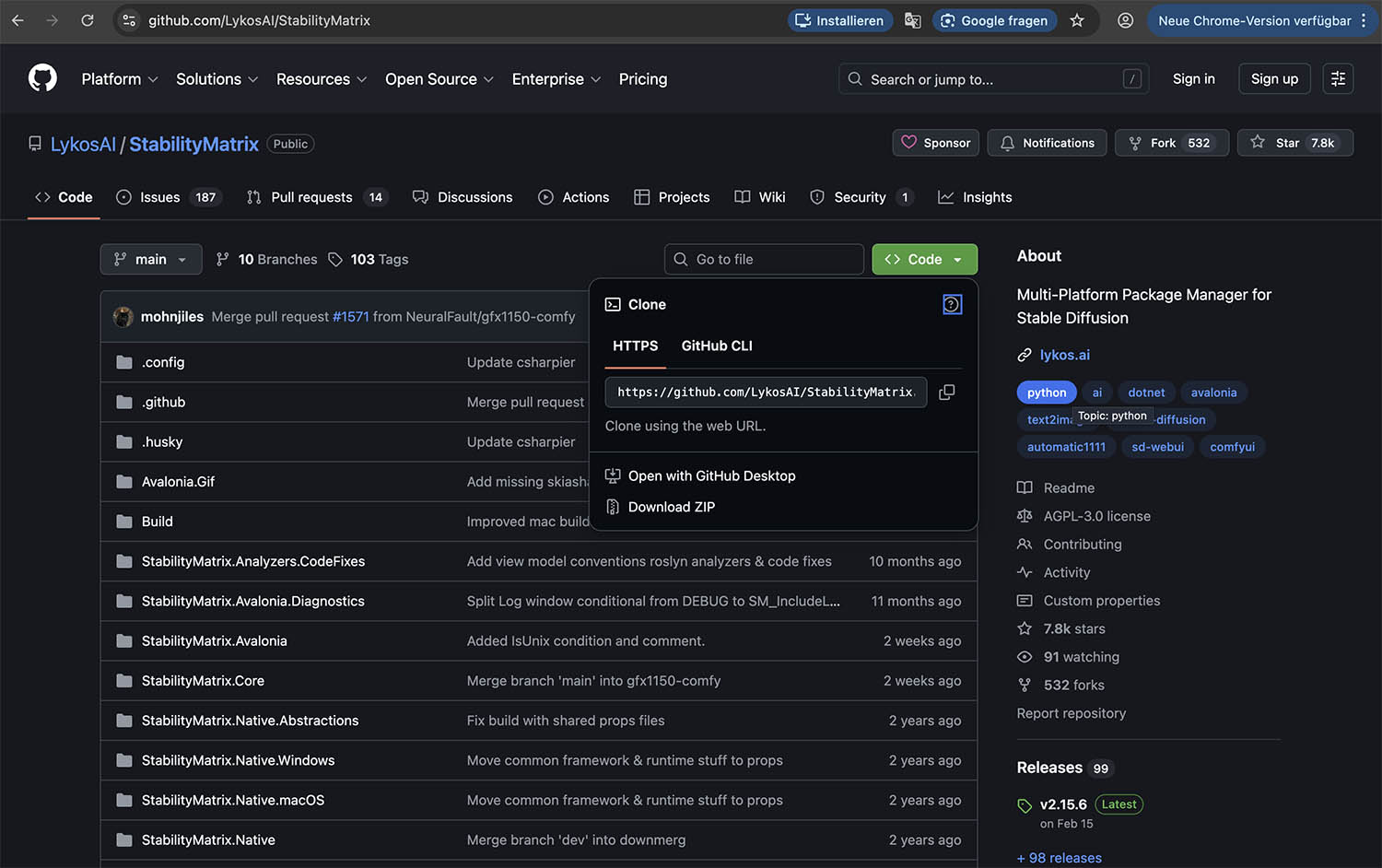
Go to github.com/LykosAI/StabilityMatrix and download the latest macOS release. Open the DMG and move the app to your Applications folder.
Download and extract Stability Matrix
Go to github.com/LykosAI/StabilityMatrix and download the latest Windows release (ZIP).
Extract before running
Windows lets you start the .exe directly from inside the ZIP — Stability Matrix will refuse with "please extract the app from the zip file before running Stability Matrix". Right-click → Extract All into a folder you choose deliberately (not Downloads, where it tends to get deleted by accident later).
Check free space per drive, not just overall
Windows Explorer tends to highlight whichever drive has the most free space — your system drive can still be full underneath. Check every drive explicitly in PowerShell:
Stability Matrix defaults its data directory to C:. If that drive is tight, it fails during install with "Not enough space to download ComfyUI … need at least 5GB" — point it at a roomier drive in the next step instead.
Verify the drive is NTFS
Stability Matrix links files between folders using NTFS junctions — these don't exist on FAT32. Older external or secondary drives are often still FAT32. Check before you commit to a location:
FAT32 also can't hold files over 4 GB — SDXL checkpoints (~7 GB) and Flux models will fail to write. Network drives (SMB) don't work either, since models would be re-read over the network on every image. Pick a local NTFS drive with at least 50 GB free.
Install ComfyUI as a package
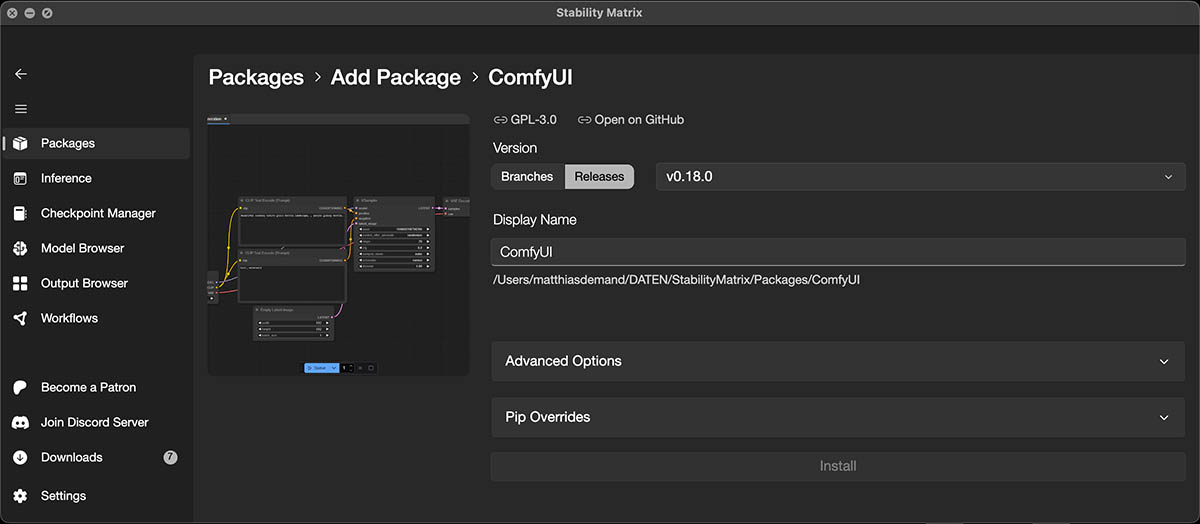
Launch Stability Matrix. On first run it will ask where to store data — choose a location with enough disk space (at least 15 GB free, ideally 40 GB+). Then click Add Package → ComfyUI → Install.
Launch Stability Matrix. On first run it will ask where to store data — point it at the NTFS drive you just verified. Then click Add Package → ComfyUI → Install.
Important — skip the model selection
Stability Matrix may offer to download a starter model during installation. Skip this step and click Close. We will download the models manually in the next section so we know exactly where they are placed.
If a previous attempt was interrupted
Stability Matrix links Packages/<Package>/output to Images/Text2Img via an NTFS junction. If an earlier install was aborted, a real output folder can be left behind — Windows can't create a junction over an existing folder, and you'll see "Unable to create junction point". Delete the leftover output folder and try the install again.
Start ComfyUI and verify it's running
Click Launch in Stability Matrix. After a moment, ComfyUI's web interface opens in your browser at 127.0.0.1:8188. Leave this running whenever you use RAY-L — it must be active in the background.
Note the model folder path
Stability Matrix stores everything in the folder you chose during setup. The exact path depends on where you installed it — for example ~/Documents/StabilityMatrix/ or a custom location. Inside that folder, ComfyUI's model directory is at:
Stability Matrix stores everything in the folder you chose during setup — for example R:\StabilityMatrix\. Inside that folder, ComfyUI's model directory is at:
Note this path — you will need it in the next step to place the model files in the correct subfolders.
Download Models — SDXL
Two models are required for SDXL. For Flux.1 dev, additional models are needed — see section 07. Place all files in the correct subfolders inside your ComfyUI models directory.
Checkpoint — Juggernaut XL Ragnarok
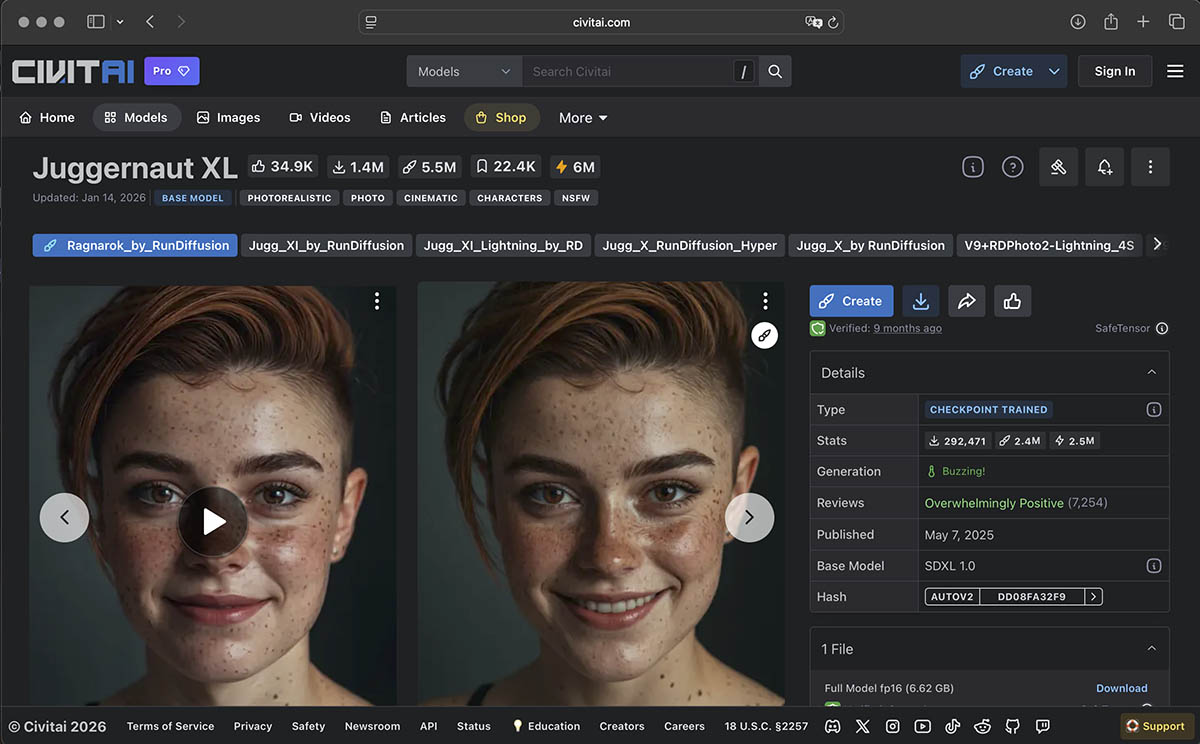
This is the image generation model — the brain behind the photorealistic output. Download juggernautXL_ragnarokBy.safetensors (~6.6 GB) from Civitai and place it in:
If your download has a different filename
Civitai, a manual download, or Hugging Face can each name the file slightly differently. Renaming it to match this guide is one option — but RAY-L also has a dedicated Checkpoint field in the panel (Settings). Type the filename you actually have there instead, and skip the rename.
ControlNet — Canny SDXL
This model locks Stable Diffusion to your Blender geometry — it is what makes RAY-L work. Without it, Stable Diffusion ignores your geometry and generates freely.
How to download from Hugging Face:
① Go to huggingface.co/xinsir/controlnet-canny-sdxl-1.0
② Click the "Files and versions" tab at the top of the page
③ You will see two versions (V1 and V2) — download V1
④ Click the download arrow on the right side of the row for diffusion_pytorch_model.safetensors
Rename the file — or use the panel's field instead
The file downloads as diffusion_pytorch_model.safetensors. This guide assumes you rename it to controlnet-canny-sdxl.safetensors before placing it in the models folder. In Finder: click the file once, press Return, type the new name, press Return again.In Explorer: click the file once, press F2, type the new name, press Enter. If you'd rather keep the original filename, that's fine too — RAY-L has a ControlNet Modell field in the panel; enter the exact filename there instead.
Place the file in:
If the controlnet subfolder does not exist, create it.
Restart ComfyUI
After placing both files, restart ComfyUI from Stability Matrix so the models are recognized. You can verify they appear in ComfyUI's model dropdown when you open the web interface at 127.0.0.1:8188.
Install the RAY-L Add-on
Download RAY-L
Download the RAY-L_v08.zip from this link. Don't unzip it — Blender installs directly from the ZIP file. The same ZIP works on both macOS and Windows.
Install in Blender
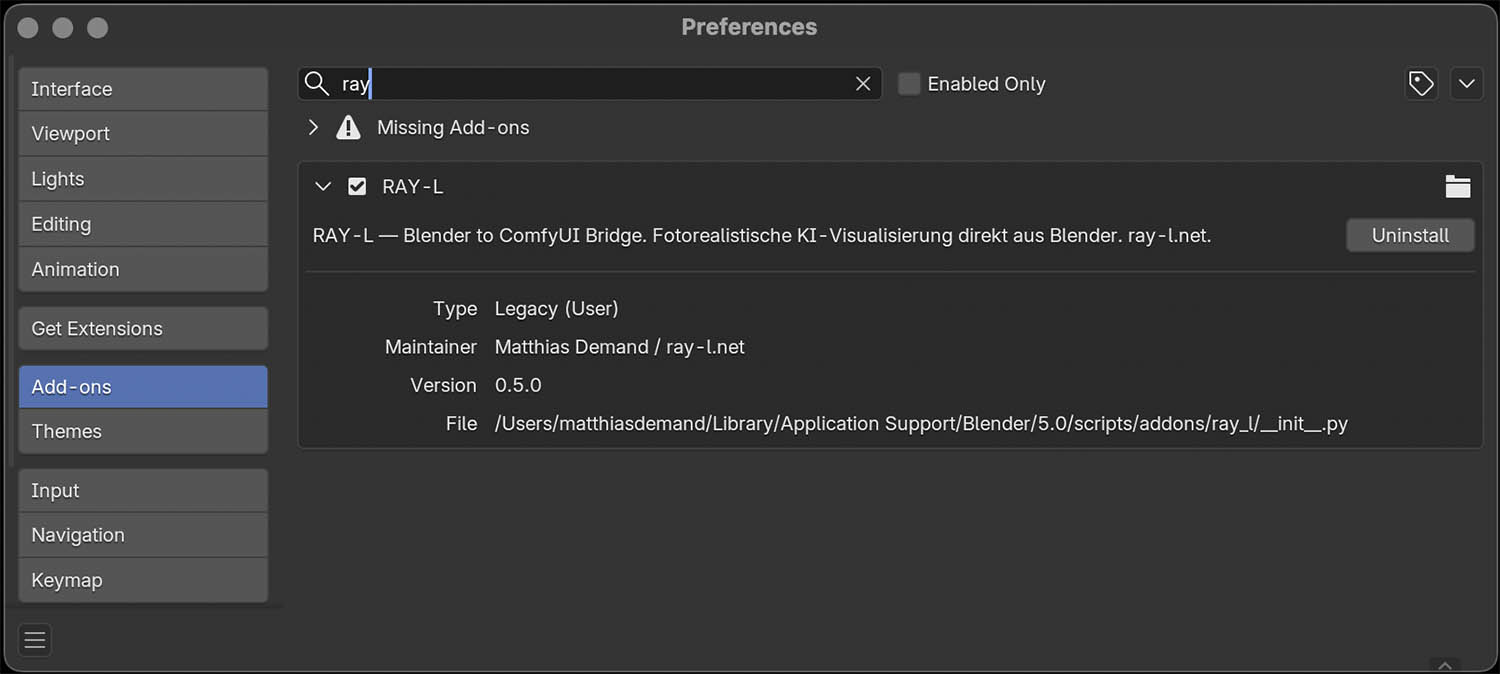
Open Blender → Edit → Preferences → Add-ons → Install. Navigate to the downloaded ZIP and confirm. The add-on RAY-L: ComfyUI Bridge will appear in the list.
Always install through this dialog
Don't copy the add-on files manually into %AppData%\Blender Foundation\Blender\5.x\extensions\user_default\ — Blender 5.x add-ons ship as packaged extensions with a manifest, and a manual copy commonly fails with "Unable to parse the manifest" or isn't picked up at all. Use Install from Disk as described above. And as covered in section 01: this only works reliably with a blender.org build of Blender, not the Microsoft Store version.
Enable the add-on
Check the checkbox next to RAY-L: ComfyUI Bridge to activate it. The RAY-L panel will now appear in Blender's Render Properties — the camera icon in the Properties Editor on the right side.
Verify the connection
Make sure ComfyUI is running. In the RAY-L panel, the status line should show ComfyUI connected at 127.0.0.1:8188. If it shows a connection error, check that ComfyUI is active in Stability Matrix.
Your First Render
The daily workflow is four steps. Always follow this exact order.
Render your scene — F12
Press F12 to render with Cycles or EEVEE. Wait until the render is complete before moving to the next step. For a first test, keep resolution at 512×512 to keep waiting time short.
Save as Reference — Button ①
In the RAY-L panel, click ① Als Referenz speichern. This saves the current Render Result buffer as input for ComfyUI. Do this immediately after F12 — the buffer is overwritten once ComfyUI returns a result.
Configure Canny edge detection
In the RAY-L panel under Settings → ControlNet Canny, set the edge detection thresholds. The values stay on the familiar 0–255 scale in the panel; RAY-L passes them to ComfyUI's Canny node, which now does the actual edge extraction. The defaults work well for most scenes:
For clean architectural geometry, keep the defaults. If your render has fine surface detail (wood grain, fabric), raise Low to 80–100 to suppress noise. If important edges are missing, lower High to 100–120.
Send to ComfyUI — Button ②
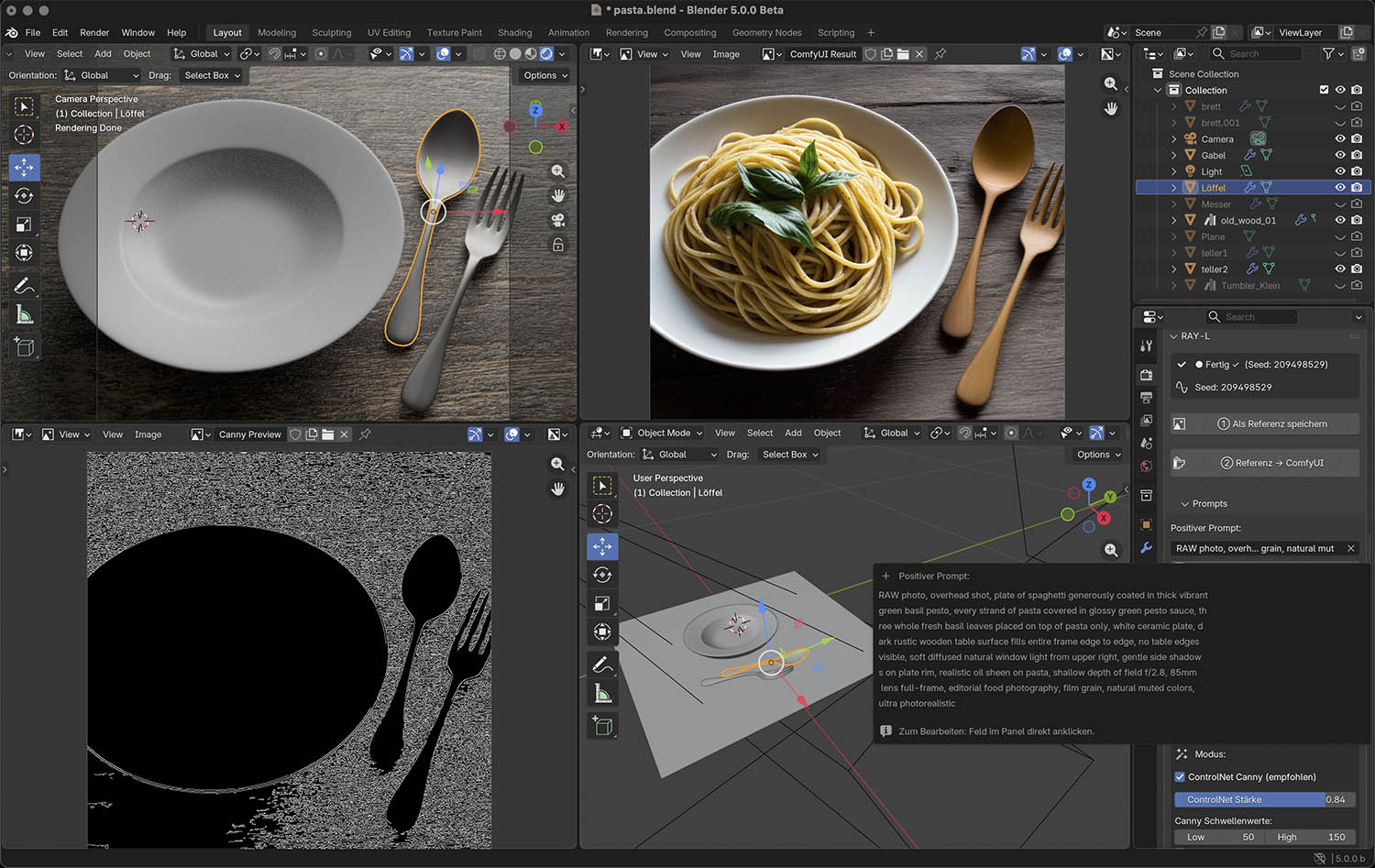
Click ② Referenz → ComfyUI. RAY-L sends the render to ComfyUI, which extracts the Canny edges and runs Stable Diffusion with ControlNet. The result appears automatically in the Blender Image Editor when done.
Check the result — and the Canny preview
As of v0.8 the edge map is computed inside ComfyUI, so the preview comes back with the render rather than before it. Alongside the result, RAY-L loads a Canny Preview image block — pick it from the datablock dropdown in the Blender Image Editor to see exactly which edges reached ControlNet. Edges should be clean and clearly defined. Heavy noise means the render has too much texture detail at low resolution — try a slightly higher resolution, or raise Canny Low. Missing edges in shadow areas usually mean too little local contrast across the edge, not a threshold problem — light the scene so edges stand out from the surface behind them.
Important — Step order
Always press F12 first, then immediately save as Reference (①). If you click Send (②) before saving, you'll be sending an old reference image — or none at all. The Render Result buffer is overwritten after each ComfyUI pass.
Key Settings Explained
These are the parameters you'll adjust most often. Start with the defaults, then tune from there.
| Parameter | Default | What it does |
|---|---|---|
| ControlNet Strength | 0.85 – 0.95 | How strongly Blender geometry controls the result. 1.0 = exact geometry, 0.5 = loose suggestion. Start at 0.90. |
| Canny Low | 50 | Lower threshold for edge detection. Lower = more edges captured. Keep at 50 for most scenes. |
| Canny High | 150 | Upper threshold. Higher = only main structural edges. Raise if the edge map looks noisy. |
| Steps | 20 – 25 | More steps = better quality, longer render time. Use 10 steps for fast tests during setup. |
| CFG Scale | 6.0 – 7.0 | How strictly the prompt is followed. Above 10 often looks artificial. 7.0 is a reliable starting point. |
| Seed | Random | Random seed = different result each time. Fix a seed to reproduce a good result — read it from the status bar after a successful render. |
| Output size | From Blender | Automatically taken from Render Properties. Keep at 512×512 or 768×768 on entry-level hardware (16 GB unified memory / 8 GB VRAM) for practical render times. |
Prompt structure that works well for photorealistic architecture:
Sampler
The tested and recommended sampler is Euler Ancestral with 25 steps and CFG 7.0. This combination is what the Juggernaut XL Ragnarok model was optimized for.
Flux.1 dev — Optional Upgrade
Flux.1 dev is a newer, more capable model than Juggernaut XL. It produces higher quality photorealistic results and understands natural language prompts better — no keyword lists required. RAY-L supports both models and lets you switch between them in the panel.
Hardware requirement — macOS
Flux.1 dev requires at least 32 GB of unified memory for practical use. On a MacBook Air with 16 GB, Flux will fail with an out-of-memory error. A MacBook Pro or Mac Studio with 64 GB is recommended.
Hardware requirement — Windows
Flux.1 dev has run successfully on as little as 8 GB VRAM (RTX 2070) with 32 GB system RAM — but expect roughly 10 minutes per image: ComfyUI offloads whatever doesn't fit in VRAM to system RAM, which works but isn't fast. It's usable, not comfortable. More VRAM shortens this considerably. 16 GB system RAM has not been tested and will likely make offloading impractical.
~23.8 GB · Place in models/unet/ · Requires Hugging Face account and license agreement
~9.6 GB · Place in models/text_encoders/ · fp8 does not run on Apple Silicon MPS, always use fp16
~4.9 GB · Place in models/text_encoders/ · smaller and tested working on NVIDIA, including GPUs without native fp8 acceleration. Use t5xxl_fp16.safetensors (~9.6 GB) instead if you have the VRAM and storage to spare
~235 MB · Place in models/clip/
~335 MB · Place in models/vae/ · Requires Hugging Face login
~3.2 GB · Place in models/controlnet/ · Rename after download
~3.2 GB · Place in models/controlnet/ · Source not yet confirmed for Windows, see step 5 below
Create a Hugging Face account and accept the Flux license
Go to huggingface.co and create a free account. Then visit huggingface.co/black-forest-labs/FLUX.1-dev and click "Agree and access repository" to accept the license terms. Without this, the download will be blocked.
After accepting, go to huggingface.co/settings/tokens, create a new token with Read access, and keep it ready for the download step.
Token security
Never share your Hugging Face token publicly. After downloading, delete or regenerate the token at huggingface.co/settings/tokens.
Download Flux.1 dev — the main model (~23.8 GB)
Go to huggingface.co/black-forest-labs/FLUX.1-dev → Files and versions → download flux1-dev.safetensors. Place it in:
This download takes 1–3 hours depending on your connection speed.
Download T5 Text Encoder and CLIP (~9.8 GB total)
Download T5 Text Encoder and CLIP
Go to huggingface.co/comfyanonymous/flux_text_encoders → Files and versions and download both files:
① t5xxl_fp16.safetensors → place in models/text_encoders/
① t5xxl_fp8_e4m3fn.safetensors (~4.9 GB) → place in models/text_encoders/
② clip_l.safetensors → place in models/clip/
Why fp16 and not fp8?
The fp8 version does not run on Apple Silicon MPS. Always use fp16 on Mac — it is fully compatible and delivers full quality.
Why fp8 and not fp16?
fp8 is smaller and has run reliably in testing, even on Turing-generation NVIDIA cards (RTX 20-series) that don't get a hardware speed-up from fp8 — it just loads and runs like any other weight there. If you have plenty of VRAM and disk space, t5xxl_fp16.safetensors (~9.6 GB) works too.
Download Flux VAE (~335 MB)
Go to huggingface.co/black-forest-labs/FLUX.1-dev → Files and versions → download ae.safetensors. Place it in:
This file requires Hugging Face login — make sure you are signed in.
Download Flux ControlNet Canny (~3.2 GB)
Go to huggingface.co/InstantX/FLUX.1-dev-Controlnet-Canny → Files and versions → download diffusion_pytorch_model.safetensors.
Rename the file — or use the panel's field instead
This guide assumes you rename the file to flux-canny-instantx.safetensors in Finder before placing it (click once, press Return, type the new name, press Return again). If you'd rather keep the original name, RAY-L has a Flux ControlNet Modell field in the panel — enter the exact filename there instead.
Place the file in:
Flux ControlNet Canny — source pending
Open item — check ray-l.net before downloading
The model this guide used to link to, flux-canny-instantx.safetensors (InstantX), has been pulled from Hugging Face. A successor exists, but at the time of writing its exact source repository and file checksum haven't been confirmed yet — publishing an unverified link here would mean you download "some file with that generic name," which is exactly the kind of ambiguity this guide otherwise tries to avoid.
Two options until this is resolved: check the RAY-L changelog for an update, or reach out at matthias@matthias-demand.de and we'll point you to a confirmed source. SDXL + ControlNet Canny (section 03) works independently of this and is unaffected.
Once you have a confirmed file, place it in:
Then enter its exact filename in the Flux ControlNet Modell field in the RAY-L panel — no rename needed.
Restart ComfyUI and verify all models are recognized
Restart ComfyUI from Stability Matrix. Open the web interface at 127.0.0.1:8188 and create a new workflow. Add these nodes and check their dropdowns:
① Load Diffusion Model → flux1-dev.safetensors
② DualCLIPLoader → t5xxl_fp16.safetensors + clip_l.safetensors
② DualCLIPLoader → t5xxl_fp8_e4m3fn.safetensors (or t5xxl_fp16.safetensors) + clip_l.safetensors
③ Load VAE → ae.safetensors
④ Load ControlNet Model → flux-canny-instantx.safetensors
④ Load ControlNet Model → whichever ControlNet file you placed in step 5
All four must appear in the dropdowns before proceeding.
Switch to Flux in the RAY-L panel
In Blender, open the RAY-L panel in Render Properties. At the top you will see two buttons: SDXL and Flux.1 dev. Click Flux.1 dev to switch.
The panel adapts automatically — the negative prompt field disappears (Flux does not use one), CFG Scale is replaced by Guidance, and the ControlNet settings show the Flux model name.
Recommended starting settings for Flux:
Steps and Guidance above are the exact values confirmed working on an RTX 2070. ControlNet Strength wasn't varied in that test — 0.7–0.85 (the macOS recommendation) is worth trying too if 0.9 looks too locked to the render.
Prompting for Flux
Flux understands natural language — write full sentences, not keyword lists. No negative prompt is needed.
Unlike SDXL, you do not need RAW photo, 8k uhd, or camera model keywords. Flux generates photorealistic results from descriptive text alone.